Setting up Kafka on an AWS EC2 instance
Table of Contents
Setting up the AWS EC2 instance
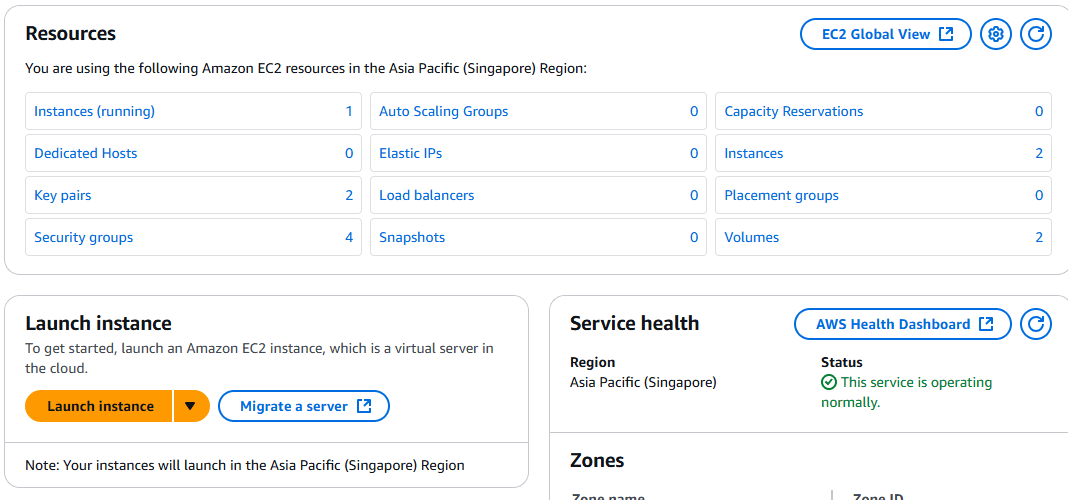
First, head over to the EC2 home page and select launch instance.
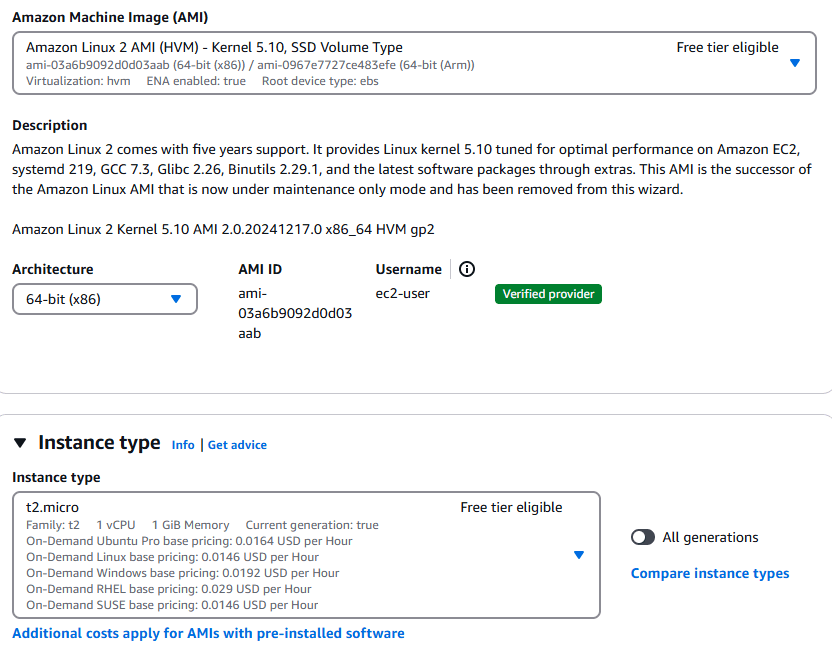
In the AWS isntance page, we will be using the Amazon Linux 2 AMI machine image as well as the t2.micro instance type.
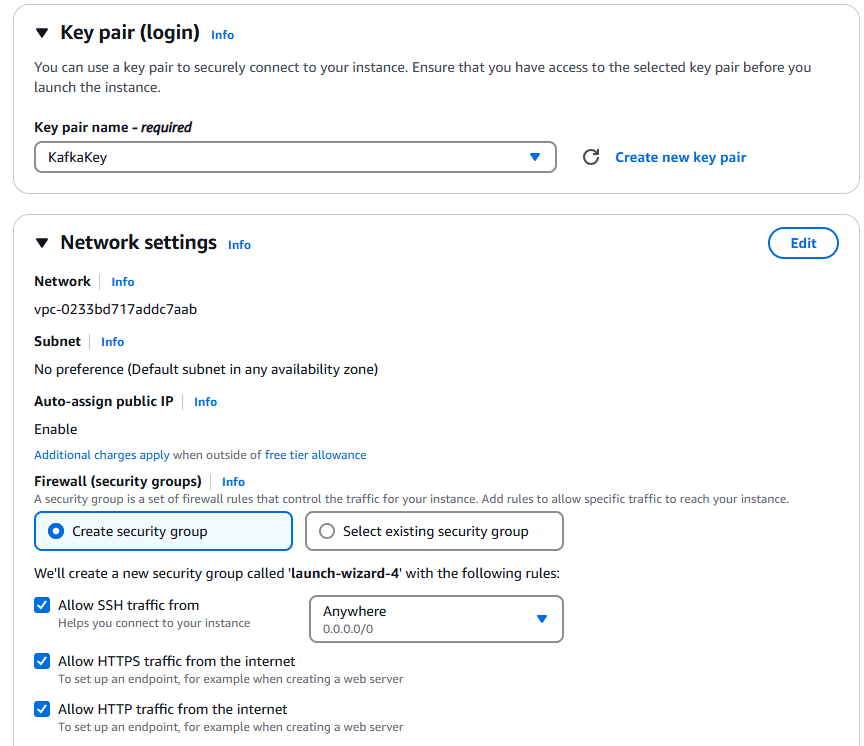
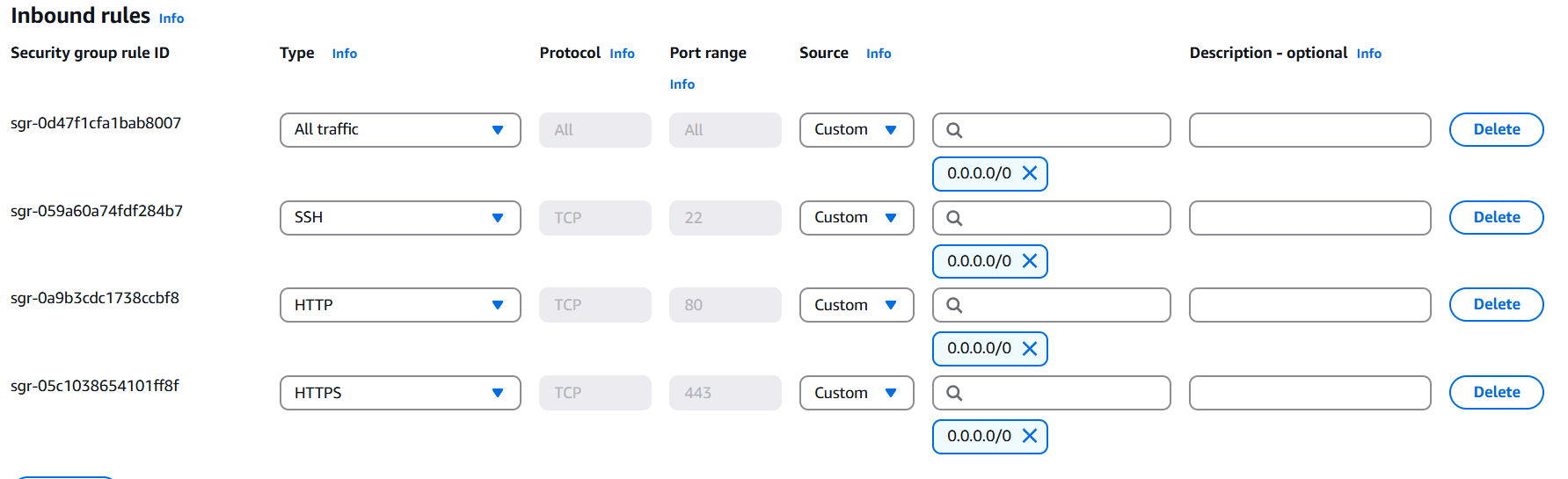
The next step is generating a key pair, which is used for authenticating your SSH access to the EC2 instance. Make sure to save the .pem file in a location you'll remember, as you'll need it later. When configuring security groups, you can choose to allow SSH, HTTPS, and HTTP traffic from anywhere, enabling connections to ports 22, 80, and 443 from any IP address. Bear in mind that this is only for simplication, and it isn't recommended for production environments due to potential security risks.
We can now select launch instance, and wait for the instance to launch. Once the instance is launched, navigate to the directory where your .pem file is stored. You can then use an SSH command to connect to your AWS EC2 instance. The -i flag in the SSH command specifies the private key file (TestKey.pem) to use for authentication instead of the default key.
1 ssh -i "TestKey.pem" ec2-user@ec2-999-999-999-999.ap-southeast-1.compute.amazonaws.comTo allow our Kafka server to accept connections from any IP address, we need to set the inbound rules tin the security group settings. Again, this is not advisable for production environments due to security risks. To configure this, we can head over to the instance page, navigate to the Security tab, and select Security Groups.
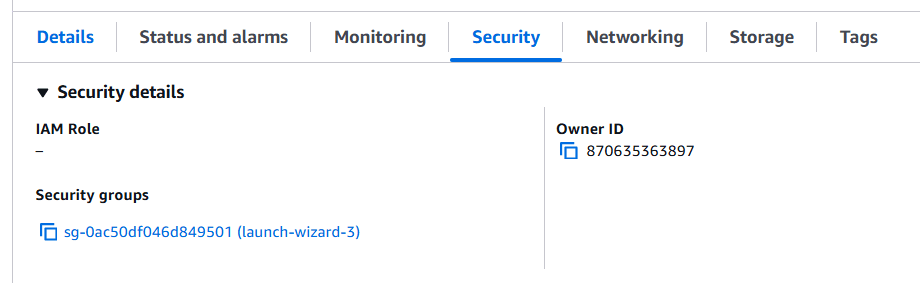
Within the Security Groups section, click the button which says edit inbound rules. This will take you to a page where you can define new rules. Here, we can add a rule, which allows all traffic from any IP address. Once you've completed this step, the AWS EC2 instance is set up, and you can now SSH into the instance to begin setting up Kafka.
Downloading Kafka
First, download Kafka from the Official Apache Website.In our AWS EC2 instance, we can use wget to download.
1wget https://dlcdn.apache.org/kafka/3.9.0/kafka_2.13-3.9.0.tgzExtract the downloaded file and navigate into the folder:
1tar -xzf kafka_2.13-3.9.0.tgz
2cd kafka_2.13-3.9.0
Allocating Memory and Ensuring Public Accessibility
The first step is to allocate additional memory to Kafka. Without this, you may encounter an error similar to the one shown below:
1OpenJDK 64-Bit Server VM warning: INFO: os :: commit_memory(0x00000000c0000000, 1073741824, 0) failed; error='Cannot alloc
2ate memory' (errno=12)
3#
4# There is insufficient memory for the Java Runtime Environment to continue.
5# Native memory allocation (mmap) failed to map 1073741824 bytes for committing reserved memory.
6An error report file with more information is saved as:
7/home/ec2-user/kafka_2.13-3.9.0/hs_err_pid29681. log
To resolve this, you can allocate the required memory by executing the following command:
1export KAFKA_HEAP_OPTS="-Xmx256M -Xms128M"Secondly, we need to make sure that our kafka is exposing its public IP instead of its private IP. We can first enter the config file using sudo nano config/server.properties, and modify the IP address with your AWS public IP.
1# Listener name, hostname and port the broker will advertise to clients.
2# If not set, it uses the value for "listeners".
3advertised. listeners=PLAINTEXT://<YOUR PUBLIC IP>:9092
Starting Kafka and Zookeeper
Kafka requires Zookeeper to run. Start Zookeeper using the provided script:
1bin/zookeeper-server-start.sh config/zookeeper.propertiesIn a separate terminal, start the Kafka broker:
1bin/kafka-server-start.sh config/server.propertiesCreating a Kafka Topic
Create a Kafka topic named demo-topic.
1bin/kafka-topics.sh --create --topic demo-topic --bootstrap-server <Public IP address of EC2 instance>:9092Verify that the topic was created successfully:
1bin/kafka-topics.sh --list --bootstrap-server <Public IP address of EC2 instance>:9092Producing and Consuming Messages
To send messages to the topic, use the Kafka producer:
1bin/kafka-console-producer.sh --topic demo-topic --bootstrap-server localhost:9092Type messages into the console and press Enter to send them. To read messages from the topic, use the Kafka consumer in another terminal:
1bin/kafka-console-consumer.sh --topic demo-topic --from-beginning --bootstrap-server localhost:9092Stopping Kafka and Zookeeper
To stop the Kafka broker and Zookeeper, use the following commands in their respective terminals:
1# Stop Kafka
2bin/kafka-server-stop.sh
3
4# Stop Zookeeper
5bin/zookeeper-server-stop.sh